What Product Compare does
BigCommerce has a built-in product comparison page, but it doesn't lay product details out in a way that's easy to read across, it doesn't show every attribute you might want, and shoppers have no easy way to see what they've picked or get to the comparison. Product Compare by Arctic Leaf fixes both halves:
- A row-by-row comparison table. The comparison page is rebuilt as a table with one row per attribute, so shoppers can read across products line by line. You decide which attributes appear and in what order, from BigCommerce's own product fields or your own custom fields.
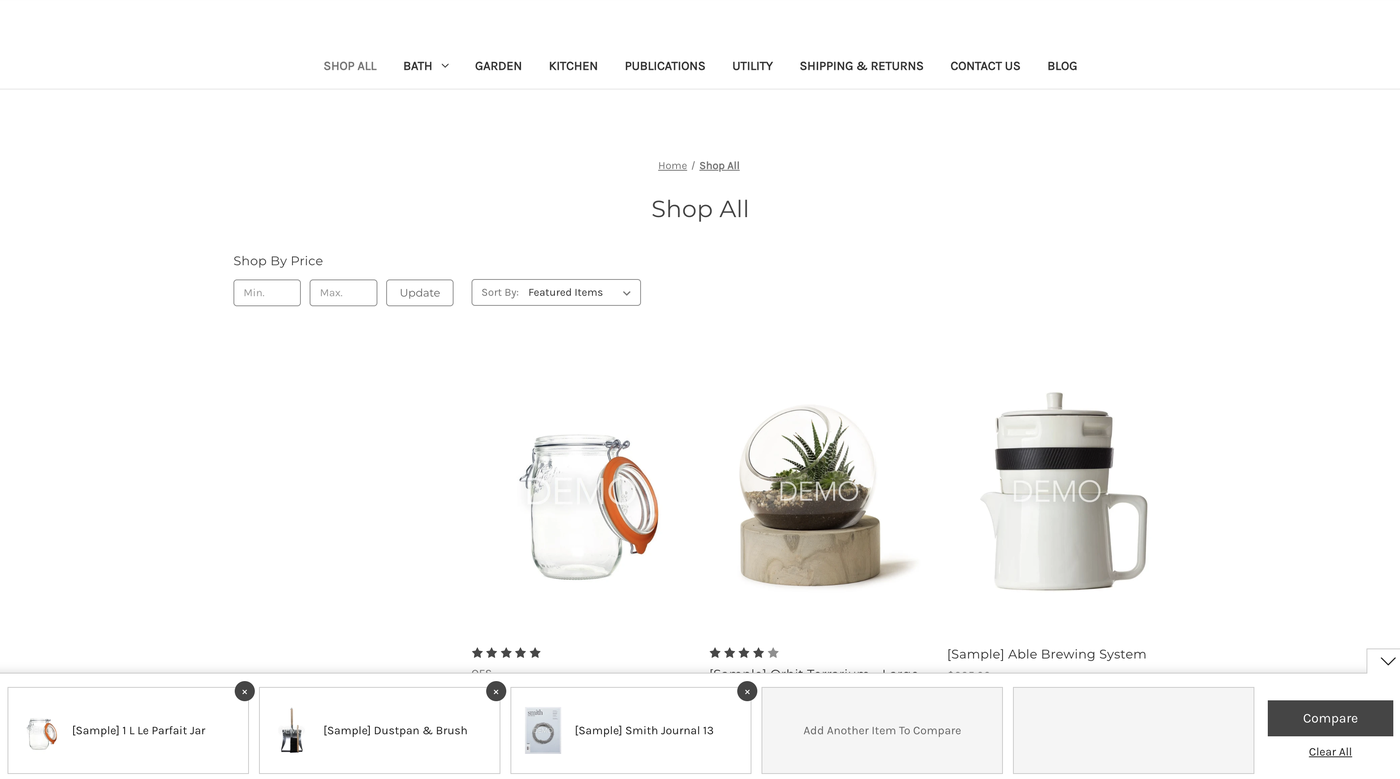
- A compare bar. As shoppers tick products to compare on category pages, a bar along the bottom of the screen shows what they've picked (up to five), keeps it as they move between pages, and takes them straight to the comparison.
- Your styling. The table, its optional sticky headings, and the compare bar each come with default CSS you can edit to match your theme.
Everything is set up inside your BigCommerce control panel. There's no theme code to edit: the app adds a single script to your storefront when it's installed and removes it when it's uninstalled.
Install the app
Before you start
- Sign in as the store owner, or as a user with permission to install apps.
- Your theme needs BigCommerce's product comparison switched on, so product cards show a Compare option. If yours don't, look for the product comparison setting in your theme's options under Storefront → Themes → Customize.
Install
- In your BigCommerce control panel, go to Apps → Marketplace and search for Product Compare by Arctic Leaf.
- Open the listing and click Install.
- BigCommerce shows the permissions the app asks for (listed below). Click Confirm.
- The app opens inside your control panel. From now on you'll find it under Apps → My Apps.
Permissions the app asks for
| Permission | Why |
|---|---|
| Content — modify | Add the Product Compare script to your storefront, keep it up to date when the app is updated, and remove it again. The script is what builds the comparison table and the compare bar. It’s listed under Storefront → Script Manager as “Product Compare by Arctic Leaf”. |
| Products — read-only | Read the names of the custom fields on your products, so you can pick one from a list when you add it to the comparison instead of typing it. The app never changes your products. |
On the storefront, the script reads product details through your store's own Storefront API, using the token BigCommerce gives every theme, so it sees only what any shopper could see.
Start your free trial
The first time you open the app you'll see Subscription Required, with a 7-day free trial. You aren't charged during the trial; after it, the app is $19 a month, plus any applicable tax, and renews monthly until you cancel.
- Click Start Free Trial. You'll leave the control panel for a secure Stripe checkout page.
- Enter your card details and complete checkout. Nothing is charged today.
- Return to your control panel with the link Stripe shows, and open the app from Apps → My Apps if it isn't already open. It's unlocked and ready to use, and a Trial: N days left badge in the header counts down your trial.
Stripe opens in the full browser window rather than inside the control panel. That's expected: payment pages can't be shown inside another site's frame. If you close the checkout page without finishing, nothing is set up and you can start the trial again whenever you're ready.
Find your way around
Open the app from Apps → My Apps. The screen has two parts:
- The header: your trial or cancellation badge, a Manage Subscription button, our support email under Need Help?, and a link to this guide.
- Three tabs:
- Introduction: a walkthrough video, a note about your subscription, how to reach us, and your Email preferences (whether we can send you product updates and tips).
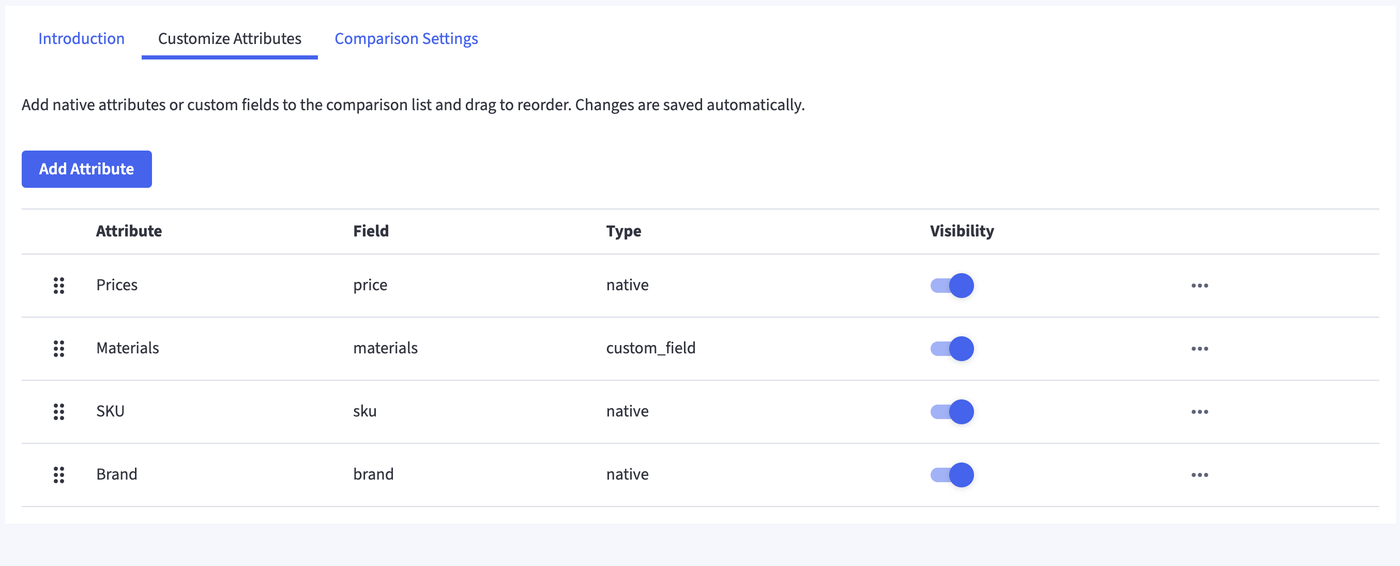
- Customize Attributes: choose the rows of the comparison table.
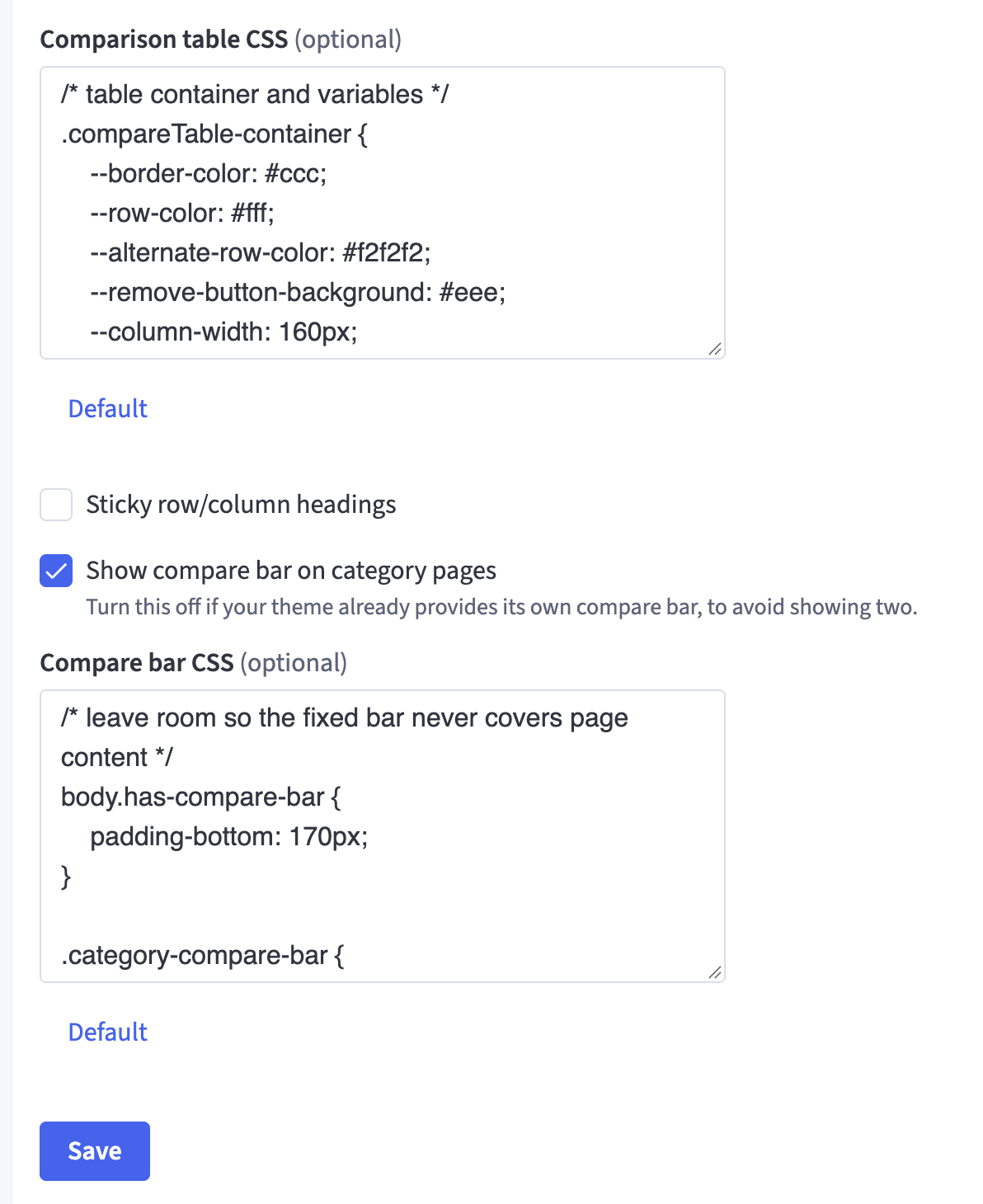
- Comparison Settings: styling for the table and the compare bar, sticky headings, and whether the compare bar is shown.
Choose what the table shows
Each attribute you add becomes one row of the comparison table. On a new install there are none yet, and until you add one, the comparison page stays exactly as your theme shows it.
Add an attribute
- Open the Customize Attributes tab and click Add Attribute.
- Enter a Display Name. This is the row heading shoppers see, so it can say whatever you like, for example “Finish” or “Price”.
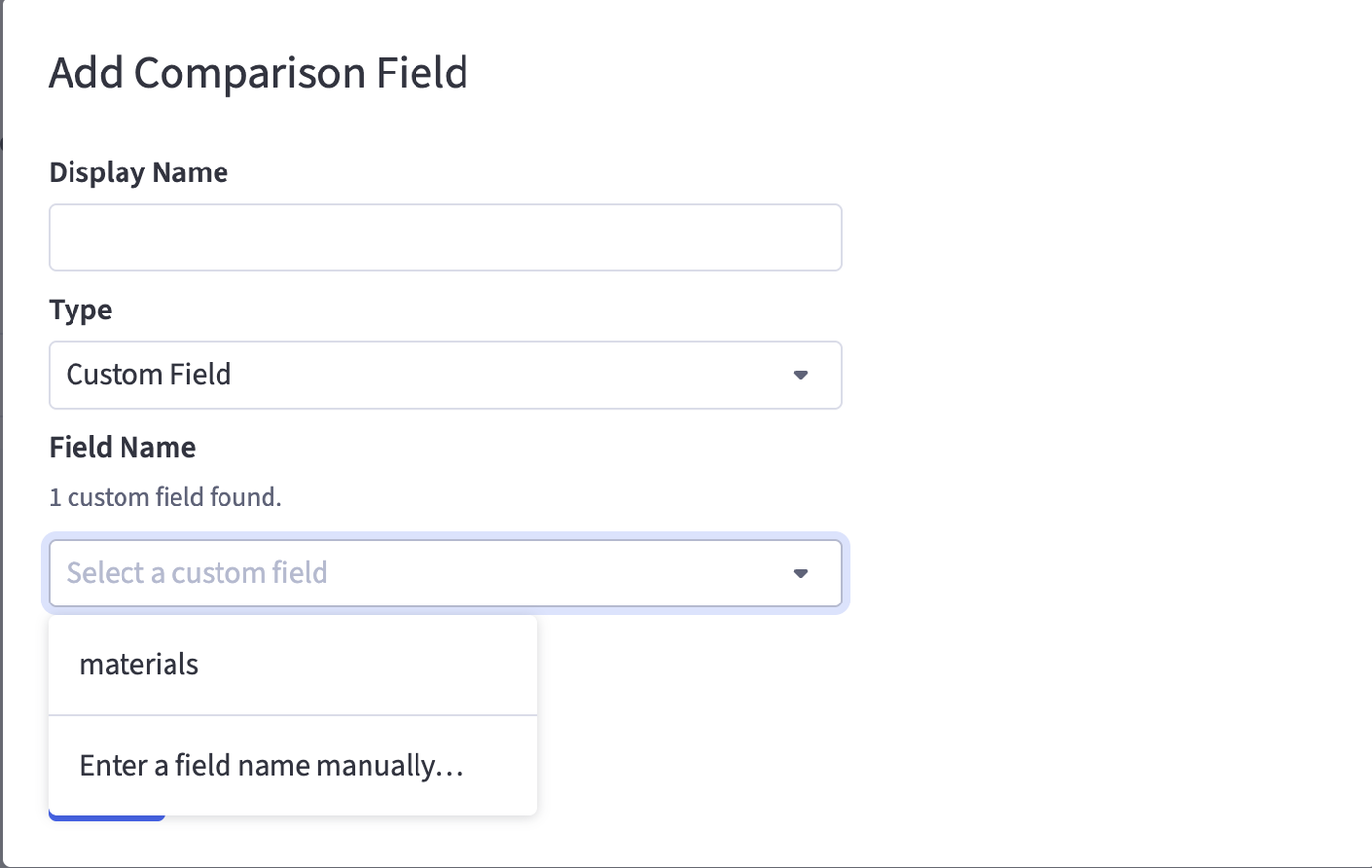
- Choose a Type: Native for a standard BigCommerce product field, or Custom Field for one of your own custom fields.
- Pick the field (see below), then click Add.
The attribute is added to the bottom of the list, switched on. Changes on this tab save automatically; there's no save button.
Native fields
With Native selected, the Field list offers:
| Field | What the row shows |
|---|---|
| SKU | The product’s SKU. |
| Brand | The brand name. |
| Prices | The price, with its currency code. When the product has a sale price or a retail price set, two prices are shown and the first is struck through. |
| Weight, Height, Width, Depth | The value with its unit, for example “2 lbs”. |
| Is in stock | Yes or No. |
| Description | The product description, with its formatting. |
| Rating | The average review rating as stars, and the number of reviews. |
| Availability | The product’s availability status. |
| Minimum / Maximum Purchase Quantity | The order quantity limits set on the product. |
| Product Type | The product’s type as BigCommerce reports it, such as physical or digital. |
| Categories | The categories the product is in, separated by commas. |
| Condition | New, used, or refurbished. |
Custom fields
With Custom Field selected, the app reads your catalog and lists every custom field name it finds on your products, so you pick the field instead of typing it. A typo would otherwise leave that row empty for every product.
- Start typing in Field Name to filter the list.
- If you've just added a custom field to your products, click Rescan catalog to read the catalog again.
- On very large catalogs the scan covers the first 5,000 products, and says so. If the field you want isn't listed, choose Enter a field name manually… and type it exactly as it appears on your products, including capitals. Choose from my catalog instead switches back to the list.
A product without that custom field shows an empty cell in its row.
Reorder, hide, edit, and delete
- Reorder: drag a row up or down. The table on your storefront uses the same order, top to bottom.
- Hide: turn off the Visibility switch. The row disappears from the storefront but stays in your list, so you can switch it back on later.
- Edit or Delete: click the ⋯ menu at the end of the row.
Changes reach your storefront within about two minutes.
Comparison settings
The Comparison Settings tab controls how the table and the compare bar look. Unlike attributes, these settings are saved only when you click Save, so a half-finished CSS rule never reaches your storefront. You'll see Styles saved. when it's done.
| Setting | What it does |
|---|---|
| Comparison table CSS | Styles for the comparison table. The default sets borders, alternating row colours, and column widths through CSS variables at the top (for example --border-color, --alternate-row-color, --column-width), so most changes are a single value. |
| Sticky row/column headings | Keeps the product images and the attribute names in view while shoppers scroll a long or wide table. Off by default. Turning it on shows its own CSS box. |
| Show compare bar on category pages | Shows the compare bar (see the next section). On by default. While it’s on, a Compare bar CSS box lets you style the bar. |
Each CSS box has a Default button underneath that puts back the CSS the app ships with. It only fills the box; click Save to apply it.
The compare bar
The compare bar works with your theme's own compare checkboxes, the Compare tick box on each product card in Cornerstone and themes built on it. It shows on any page with those checkboxes: category pages, search results, and brand pages.
If your theme already has a compare bar
Some themes ship their own compare bar. Showing both would be confusing, so turn ours off:
- Open the Comparison Settings tab.
- Untick Show compare bar on category pages.
- Click Save.
Your theme's bar carries on as before, and shoppers who reach the comparison page still get the app's table. Tick the box again at any time to bring the bar back; your compare bar CSS is kept.
Themes with a Compare button instead of checkboxes
Some themes, such as Supermarket, use a Compare button and their own bar instead of checkboxes. The app's bar doesn't appear on those themes at all, so there's nothing to turn off. The comparison page is still rebuilt as the app's table.
What shoppers see
On category pages
- When a shopper ticks Compare on a product, the compare bar appears along the bottom of the screen with that product's image and name.
- The bar holds up to five products. Ticking a sixth shows “You can compare up to 5 products at a time.” and leaves it unticked.
- The selection stays as the shopper pages through results, filters, or opens another category, for as long as that browser tab is open.
- × on a product removes it, Clear All empties the bar, and the arrow at the top collapses the bar out of the way.
- Compare opens the comparison page once at least two products are selected.
On the comparison page
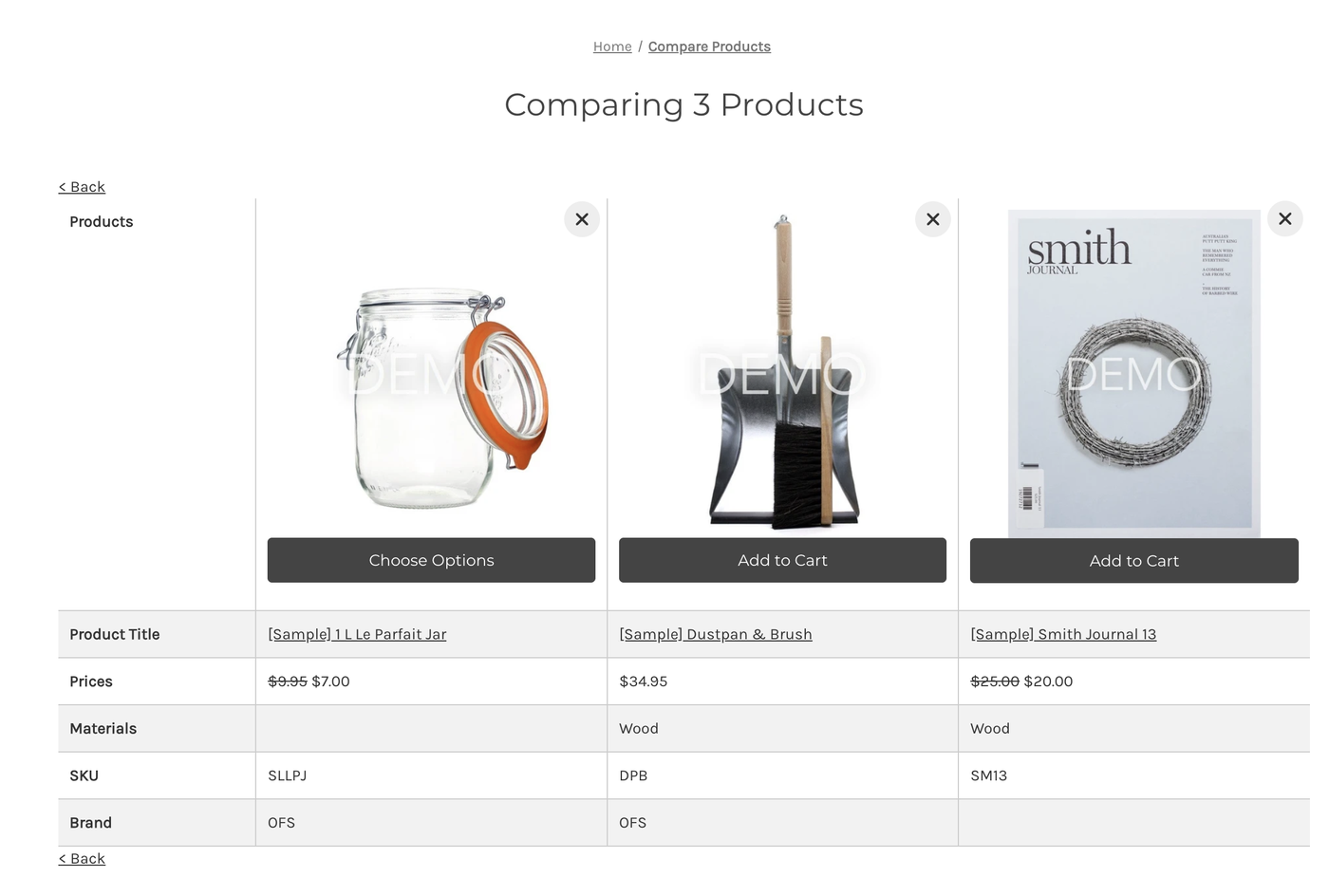
The theme's comparison table is replaced with the app's:
- A column per product, in the order the shopper picked them, with its image, name, and an Add to Cart button (Choose Options for products with options).
- One row per visible attribute, in your order from the Customize Attributes tab.
- With three or more products, an × on each removes it from the comparison.
- < Back links above and below the table return the shopper to where they came from.
If the table can't be built, the theme's own comparison table stays in place, so shoppers always see a comparison. That happens when no attributes are switched on, when fewer than two products are being compared, or if product details can't be loaded.
Billing
Product Compare by Arctic Leaf is $19 a month after a 7-day free trial, billed through Stripe rather than your BigCommerce invoice. While you're on the trial, the header shows how many days are left.
Click Manage Subscription in the header to update your card, see your invoices, or cancel. It opens Stripe's billing page in the full browser window.
If you cancel, you keep access until the end of the period you've paid for (or the end of your trial), and the header shows Cancels in N days. After that, the app shows the subscription screen again. Your attributes and settings are kept, so if you subscribe again they're all still there.
Uninstall
Uninstalling doesn't cancel your subscription
Billing is handled by Stripe, separately from BigCommerce. To stop being charged, click Manage Subscription and cancel before you uninstall, since that button is only available while the app is installed. If you've already uninstalled, email support@arcticleaf.com and we'll cancel it for you.
- In your control panel, go to Apps → My Apps.
- Find Product Compare by Arctic Leaf and click Uninstall, then confirm.
What uninstalling removes
- The storefront script. BigCommerce removes it, so the compare bar disappears and the comparison page goes back to your theme's own table. Nothing in your theme or catalog was changed, so there's nothing else to undo.
- Your settings. The app deletes your attributes, your CSS and settings, and its access to your store. Reinstalling starts from a clean slate.
What it keeps
- Your subscription, as explained above. If you reinstall, the app finds your existing subscription and picks it back up.
- Your contact email, marked as uninstalled, along with your email preference, as described in our privacy policy. To have it removed, email support@arcticleaf.com.
Troubleshooting
- The comparison page still looks like my theme’s.
- Check that at least one attribute on the Customize Attributes tab has its Visibility switch on, and that you’re comparing at least two products. Changes take up to about two minutes to reach the storefront.
- A custom field row is empty.
- The field name has to match the custom field on your products exactly, including capitals. Edit the attribute and pick the field from the list instead of typing it, or click Rescan catalog if you added the field recently. Products that don’t have the field show an empty cell.
- Shoppers see two compare bars.
- Your theme has its own. Untick Show compare bar on category pages on the Comparison Settings tab and click Save.
- The compare bar doesn’t appear.
- Check that Show compare bar on category pages is ticked, and that your theme shows Compare checkboxes on product cards. The bar appears once a shopper ticks one, and it never shows on the comparison page itself.
- My CSS changes don’t show up.
- Click Save after editing. A Default button only fills the box, so it needs saving too. Then allow up to about two minutes and reload the storefront.
- “This App can only be used within the context of a BigCommerce store”
- You opened the app’s web address directly. Open it from Apps → My Apps in your control panel instead.
Get help
Email support@arcticleaf.com. It helps to include your store's URL, what you were trying to do, and any error message you saw. You'll also find articles on all our apps at help.arcticleaf.com.
Product Compare by Arctic Leaf. Guide last updated October 2026.